Connect Claude Code
Connect Claude Code — no terminal experience needed.
You don't need to be a developer. This is the whole thing: copy your key, paste one set of commands once, restart Claude Code. About 2 minutes. Every screen you'll see is shown below.
What you’ll need
Claude Code already installed on your Mac, and a Newmen account. That’s it. A “key” is just a password that lets Claude Code talk to Newmen on your behalf — you’ll copy it in the next step.
1. Copy your key
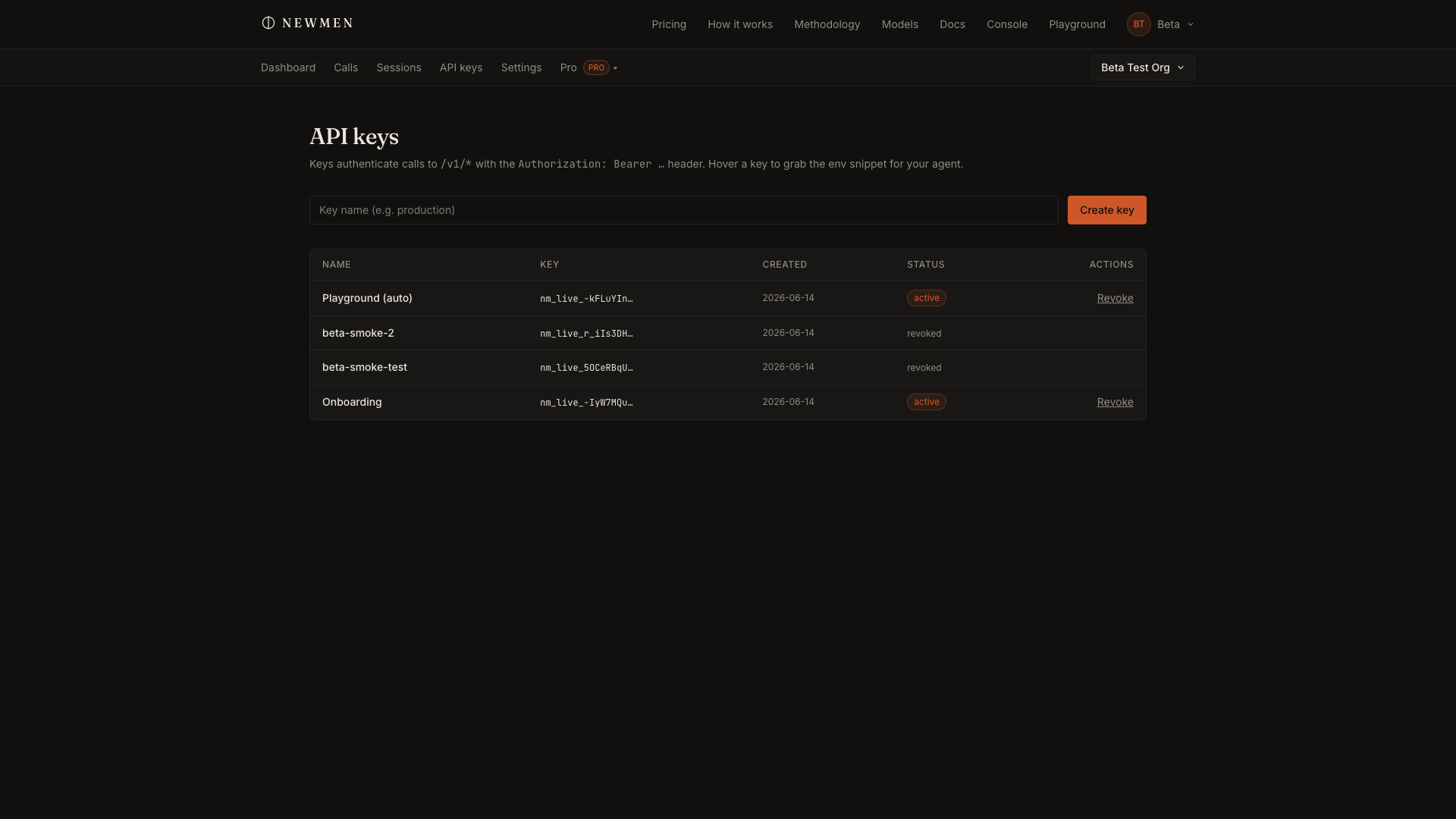
In the console, open API keys, type any name (e.g. my-laptop), and click Create key. Your key is shown once — click Copy right away and keep it somewhere safe. It starts with nm_live_.
2. Open Terminal
“Terminal” is an app that comes with every Mac — it lets you type a command and press Enter. To open it: press Cmd + Space, type Terminal, and press Enter. A small window with a blinking cursor appears. That’s all you need it for.
3. Paste the commands
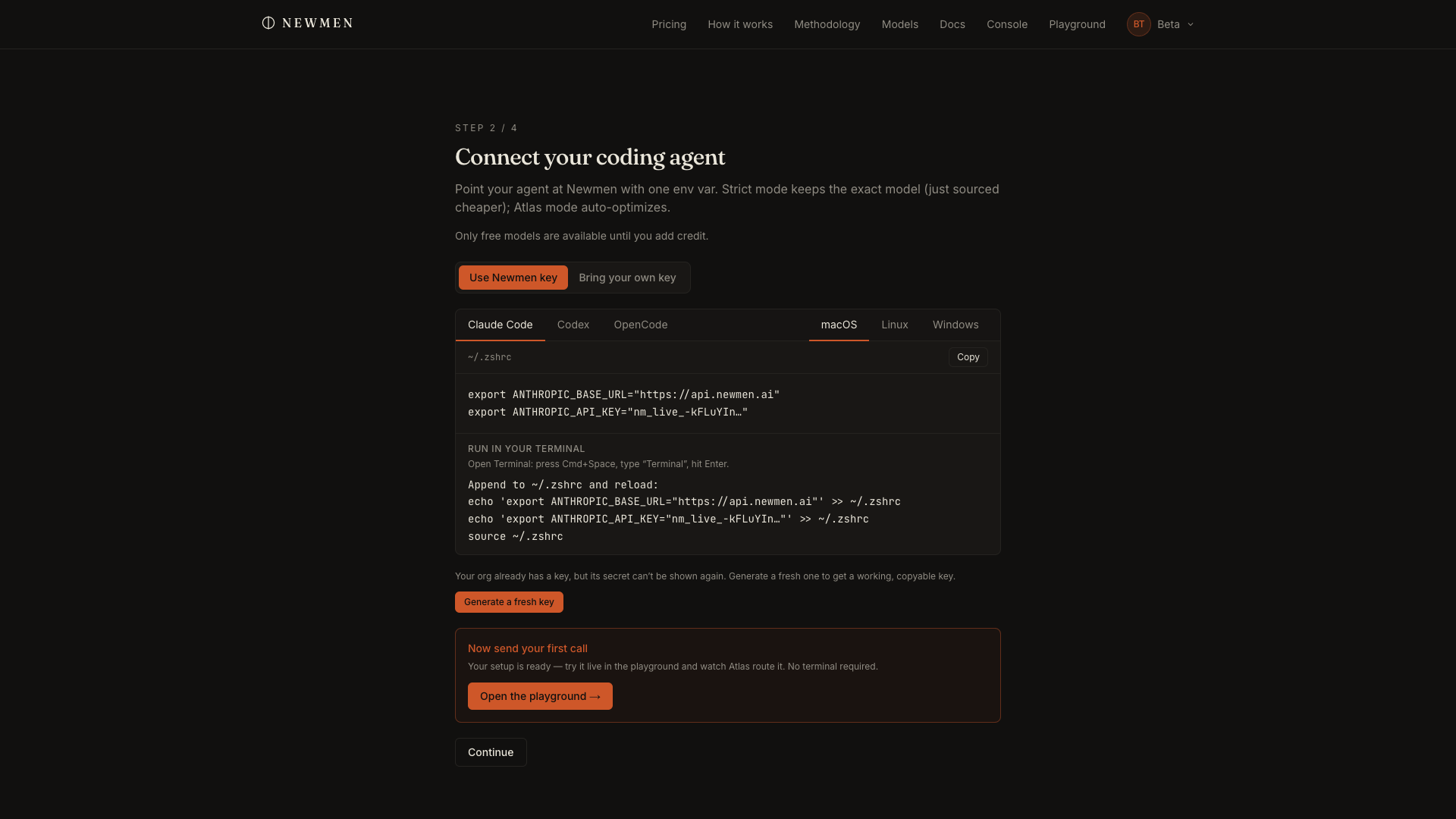
Paste the three lines below into the Terminal window and press Enter. Signed in? Hit Insert my key and they’ll already include your real key — otherwise replace nm_live_... with the key you copied in step 1. These save your key permanently (in ~/.zshrc), so it survives a restart.
echo 'export ANTHROPIC_BASE_URL="https://api.newmen.ai"' >> ~/.zshrc
echo 'export ANTHROPIC_API_KEY="nm_live_..."' >> ~/.zshrc
source ~/.zshrcSaves your key in ~/.zshrc so Claude Code still finds it after you quit and reopen.
You won’t see a “success” message — that’s normal. These commands quietly save your key so Claude Code can find it. You do not need to open or edit any file yourself; the commands do it for you.
Here’s exactly what it looks like — the commands paste in, nothing prints back, and then Claude Code runs your request through Newmen:
4. Restart Claude Code
Quit Claude Code completely and open it again, so it picks up the new setting. (Open apps only read these settings when they start.)
5. Check it worked
Ask Claude Code anything. Then come back and open Calls in the console — if your request shows up there, it worked, and you’re already saving on every call. Prefer not to touch the terminal at all? You can also send a first message right now in the Playground.
What is ~/.zshrc?
Optional reading — you can skip this. ~/.zshrc is a small settings file your Mac’s Terminal reads every time it opens. The commands in step 3 simply add two lines to the bottom of it (the >> means “add to the end”), and source ~/.zshrc tells the terminal to re-read it right away. That’s the whole trick: your key now lives in that file, and Claude Code reads it from there.
If something went wrong
- Claude Code still uses your old setup. Make sure you fully quit and reopened it after step 3.
- Terminal says
command not found: claude. That just means Claude Code isn’t on your terminal’s path — open Claude Code the way you normally do; the connection still works. - You’re on Windows or Linux, or your terminal isn’t “zsh”. Use the matching tab (Linux / Windows) in the setup wizard — it prints the exact commands for your system.
- Still stuck? Reply to your beta invite email — a real person will walk you through it.